Because of modern technologies, many organizations can allow their employees to work from home. As long as they have a computer, stable internet connection, and remote desktop tools, they can operate seamlessly regardless of their locations.
Remote desktop technology allows users to view another desktop on their device wherever they may be. It is possible to open folders, move files, and run programs on the remote computer, even if they are not in front of it. Both Windows and Mac operating systems support remote desktop connections, although they are implemented differently.
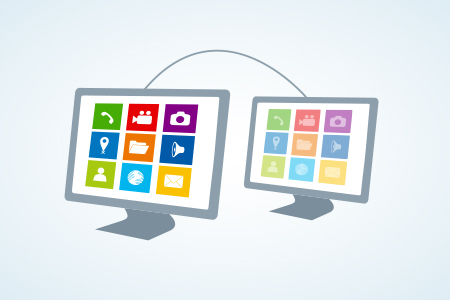
What do you need to check before setting up remote desktop software?
Here are the things to remember when connecting to a remote computer:
- Make sure that the local computer and the remote computer are both connected to the internet for remote access.
- The remote desktop application should be running on the remote and local device.
- If necessary, set up or enable the firewall to allow the application.
How to Set Up Microsoft Remote Desktop Connection
First off, you or a representative must be able to sign into the computer that you want to access remotely. Switch on the remote desktop on the PC by opening Settings > System and then Remote Desktop. Toggle the “Enable Remote Desktop" switch and confirm it to enable the setting.
By default, your computer is awake for connections when plugged and discoverable on private networks. To view or edit this option, click Advanced Settings and tick off "Require computers to use Network Level Authentication (NLA) to connect." NLA provides robust security for remote connections over the same network. It requires users to be authenticated before they can access the remote desktop.
Return to the previous screen by clicking back and scroll until you see Remote Desktop settings. Users that own an administrative account on the remote computer can access it by default. Let’s say you’re using Microsoft Account credentials to sign into Windows, and your account has administrative rights, you can just use that account to sign in remotely. Now, if you need to endorse access to a different account, simply click the "Select users that can remotely access this PC" link below. Choose Add and input the username for that account.
Finally, pay attention to the name of the computer as you will need it when logging in remotely. If you want to modify the name of the computer, you can click on Start > Settings > System > About, and then "Rename this PC." Once you’re done, close the Remote Desktop settings and you’re good to go.
How to Access to Remote PC from Windows
Now, if you are at home and you want to connect to your office computer, follow these steps:
- Open the Remote Desktop Connection tool in Windows 10.
- Click the Start button.
- Open the folder for Windows Accessories and choose Remote Desktop Connection.
However, take note that older versions of the OS have a different process. In Windows 8.1, you need to press the Windows key and then Shift + S to launch the Search tool. Type in “Windows Remote Desktop” on the search bar and click the top result. In Windows 7, click the Start button, open Accessories, and then choose Remote Desktop Connection.
Once you open the Remote Desktop Connection program, type the name or IP address of the remote PC you want to access. Click the Show Options button, and type the name of the account you will use to log in. If you want to save your login credentials so you don’t forget them, click the box next to "Allow me to save credentials" and then Connect.
Put in your password at the credentials window and tick the “Remember Me” box if you wish to retain your password every time you use this account. After clicking OK, you may receive a message saying that the remote computer you’re trying to access cannot be verified. When this happens, click the "Don't ask me again for connections to this computer" box and then choose Yes.
This should connect you to the remote computer so you can execute applications, access and work on your files, and perform other relevant tasks. The left side buttons let you pin the bar and check the connection speed. Meanwhile, the buttons on the right will allow you to minimize the window, change the window size, and close the remote session. If you want to end the connection, simply close the Window.
Itarian
Itarian can teach you how to set up remote desktop connections in your organization. We provide remote tools so you can collaborate effectively with your teams in real-time, regardless of your current location.
